AWS Athena Demo
Part 1: Data Preparation
From your EC2 instance terminal, run the following commands to copy the NYC-TLC Dataset into your S3 bucket.
Important: Replace <your-net-id> with your actual net id (e.g., for net id aa1603, the bucket name will be athena-aa1603).
# Set your net ID (replace <your-net-id> with your actual net id)
NETID=<your-net-id>
BUCKET=athena-$NETID

# Create a new S3 bucket
aws s3 mb s3://$BUCKET

# Verify that the bucket is created
aws s3 ls s3://$BUCKET/

# Download NYC TLC dataset directly to your S3 bucket
# This downloads and uploads files without storing them locally
wget -qO- https://d37ci6vzurychx.cloudfront.net/trip-data/yellow_tripdata_2023-01.parquet \
  --no-check-certificate | aws s3 cp - s3://$BUCKET/data/2023/yellow_tripdata_2023-01.parquet

# Download data for multiple months (January through June 2023)
for month in {01..06}; do
    echo "Downloading data for month $month..."
    wget -qO- "https://d37ci6vzurychx.cloudfront.net/trip-data/yellow_tripdata_2023-$month.parquet" \
      --no-check-certificate | aws s3 cp - "s3://$BUCKET/data/2023/yellow_tripdata_2023-$month.parquet"
done

# Verify all 6 files are uploaded
aws s3 ls s3://$BUCKET/data/2023/
Expected Output:
2024-09-20 13:51:29   47673370 yellow_tripdata_2023-01.parquet
2024-09-20 13:51:31   47748012 yellow_tripdata_2023-02.parquet
2024-09-20 13:51:32   56127762 yellow_tripdata_2023-03.parquet
2024-09-20 13:51:34   54222699 yellow_tripdata_2023-04.parquet
2024-09-20 13:51:36   58654627 yellow_tripdata_2023-05.parquet
2024-09-20 13:51:38   54999465 yellow_tripdata_2023-06.parquet
Part 2: Amazon Athena with GUI Query Editor
In this part, you will set up Amazon Athena using the AWS Console and execute SQL queries using the GUI query editor.
Step 1: Setting up AWS Glue Data Catalog
AWS Glue is a serverless data integration service that helps discover and catalog data. We’ll use it to create a data catalog for our NYC taxi data stored in S3.
Search for
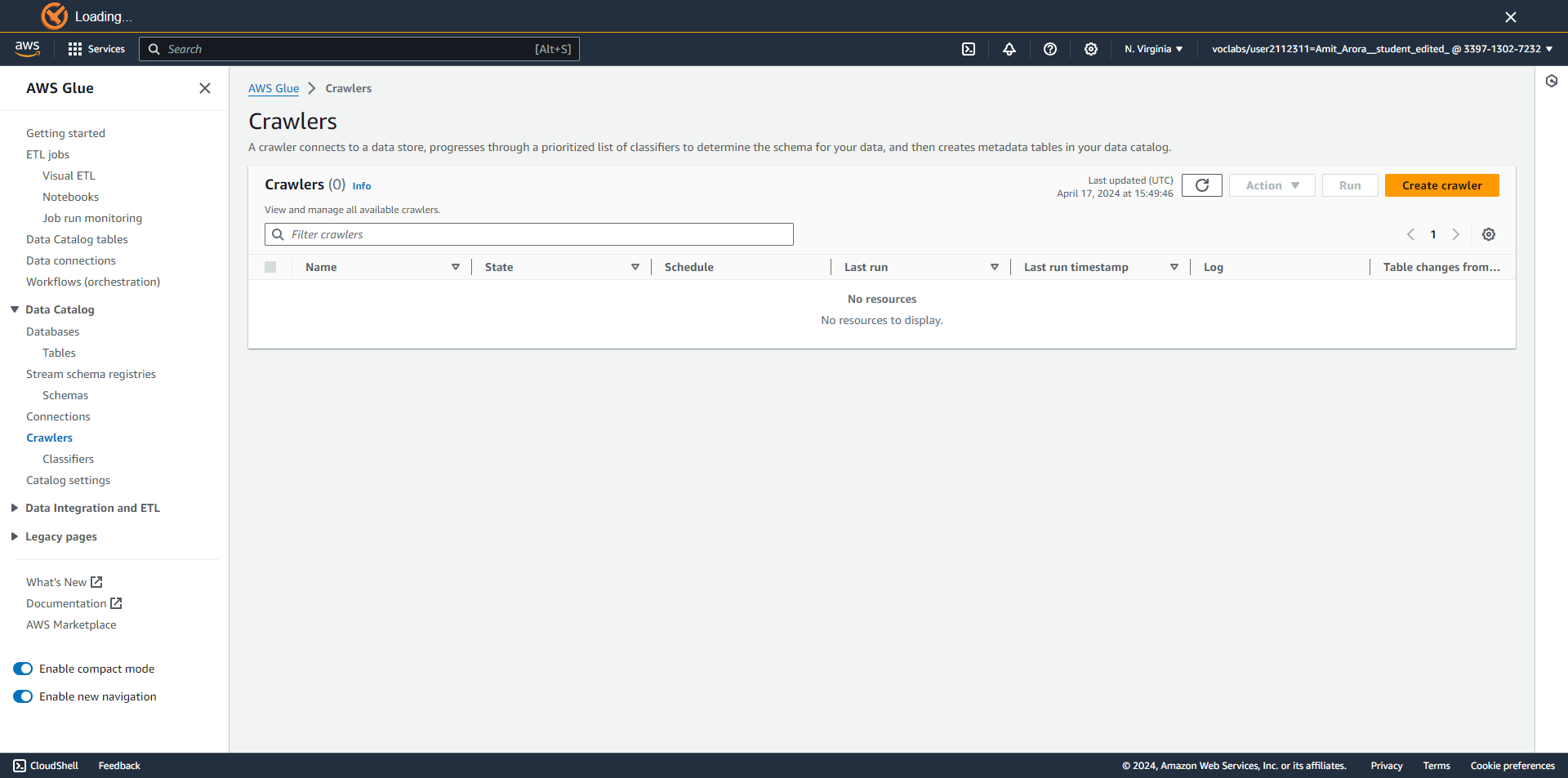
AWS Gluein the search bar of your AWS console as shown in the figure below. Open Data Catalog and Click on Crawlers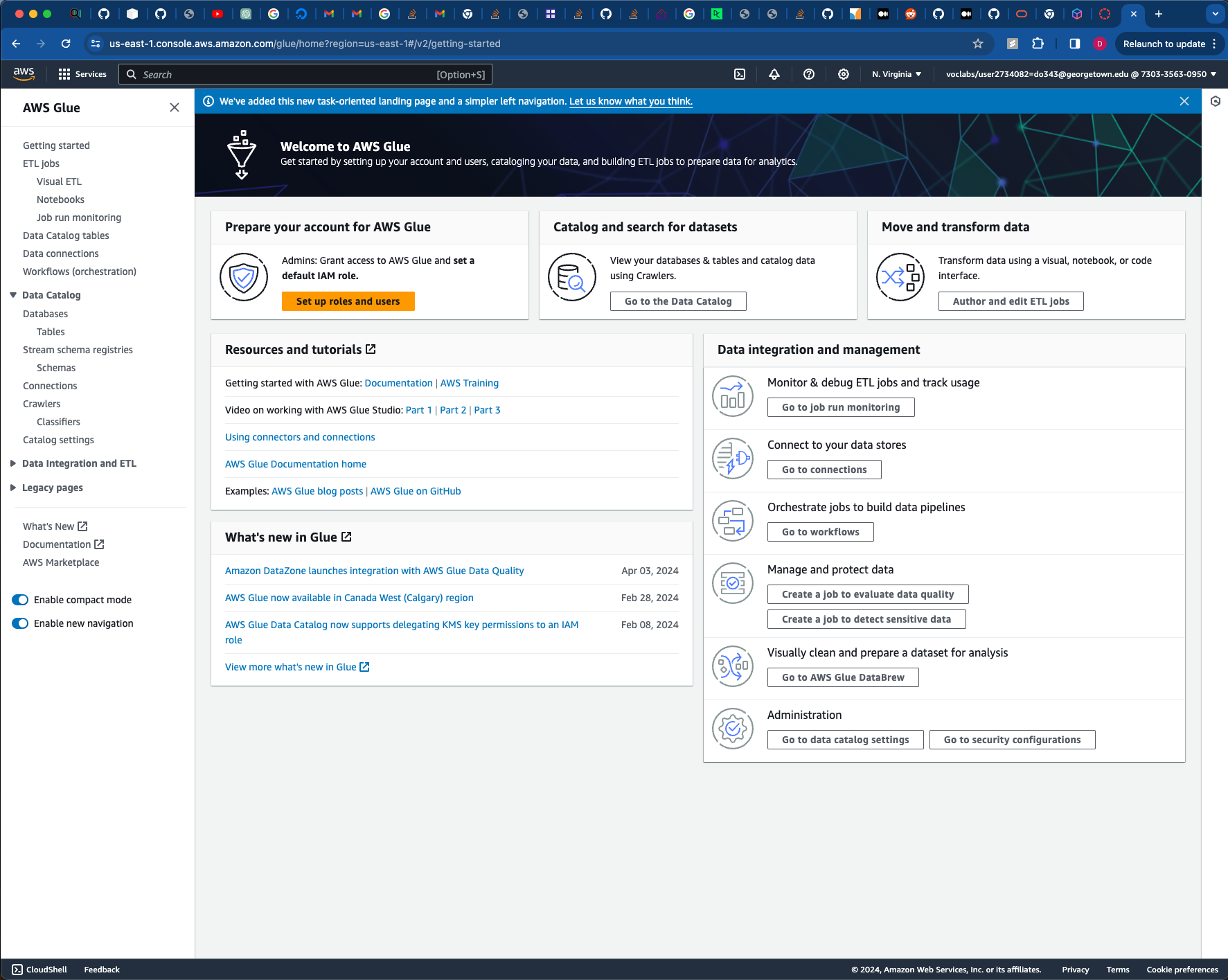
Open Data Catalog and Click on Crawlers. This page should pop up. Click on the Create Crawlers button
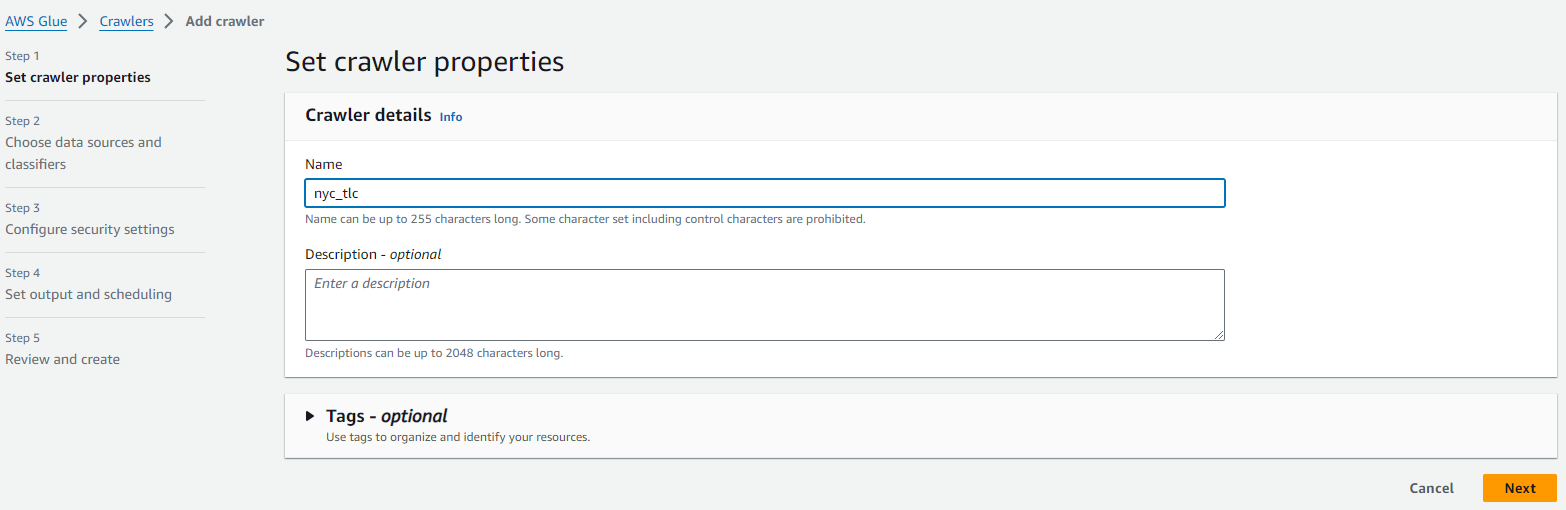
Enter a Name for your dataset. Leave the description blank. The figure below shows sample text you could use. Once you enter your desired name, scroll down to the next section.
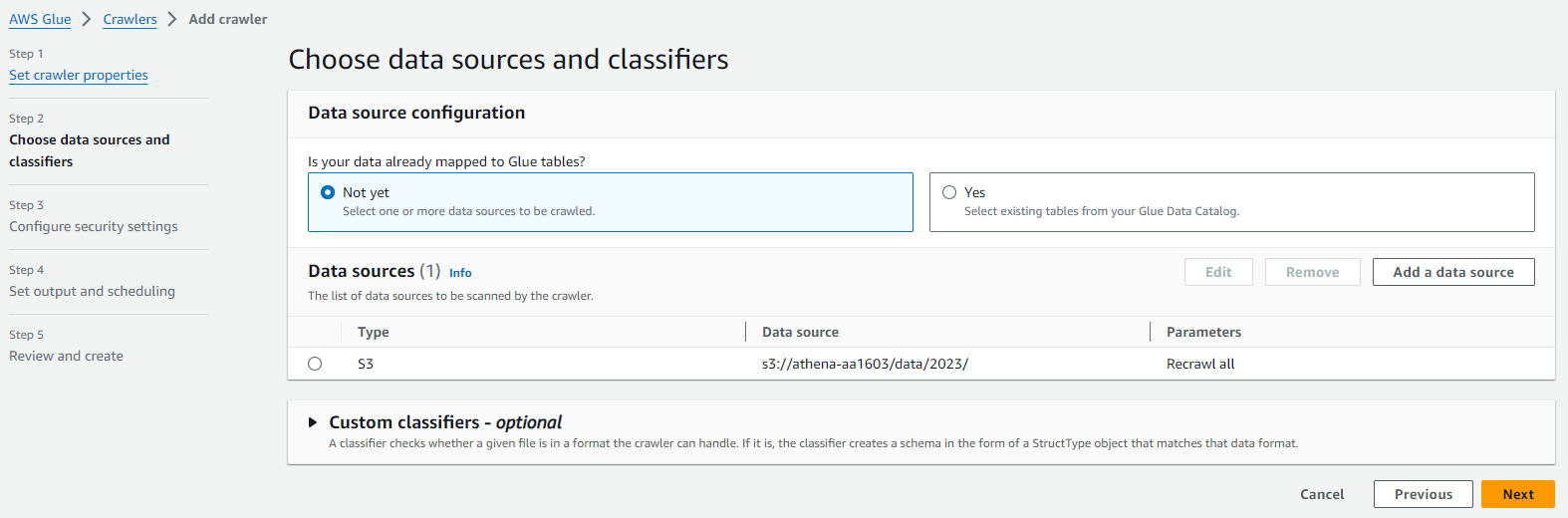
Click on Not Yet and select
Add a Data Source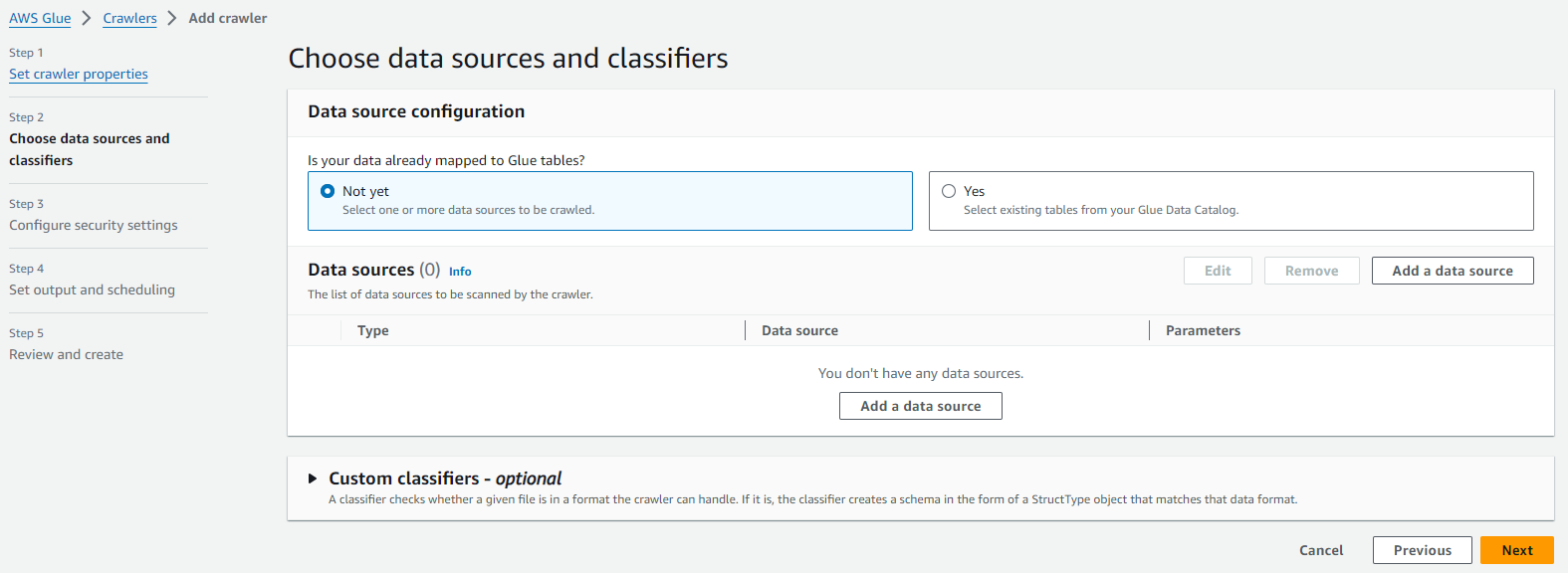
This should pop up, Now select the s3 path where the data is stored as given below.
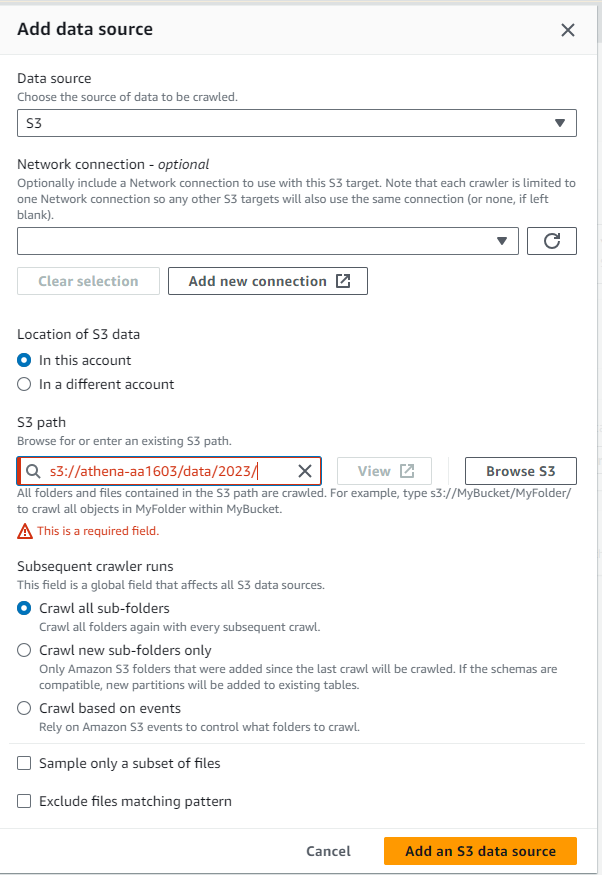
Click on Add S3 Source and this should appear. Click on Next
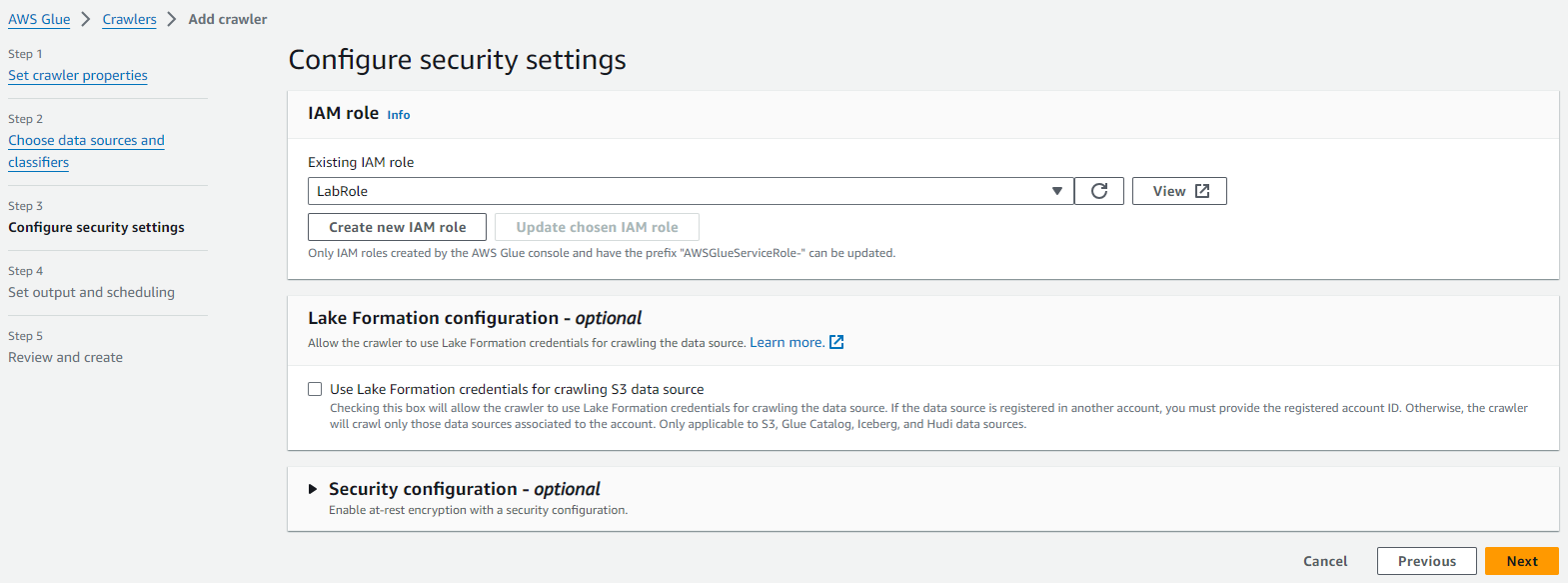
Select IAM role as LabRole as below. Click on Next
Now, this screen should appear. Click on Add Database:
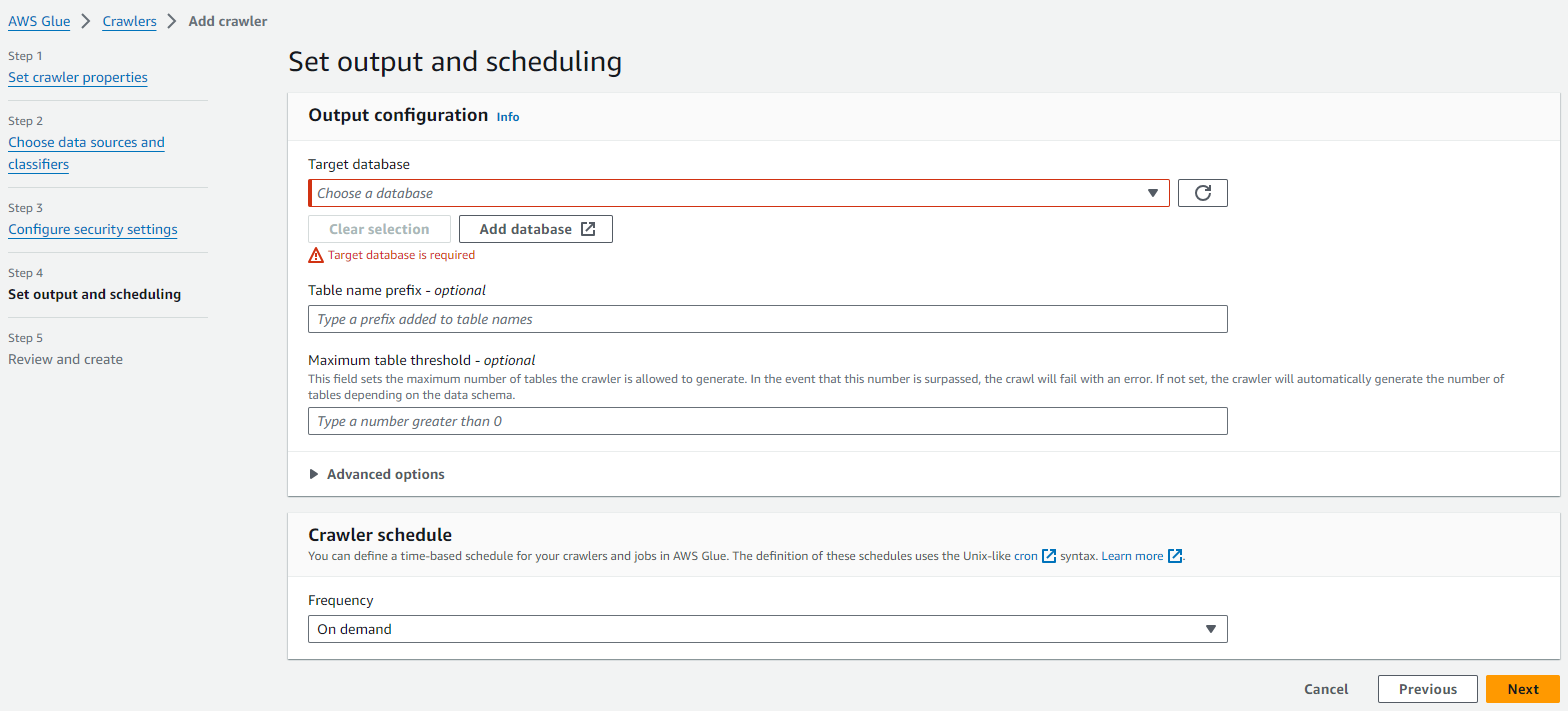
Follow the steps as below. Click on Create Database.
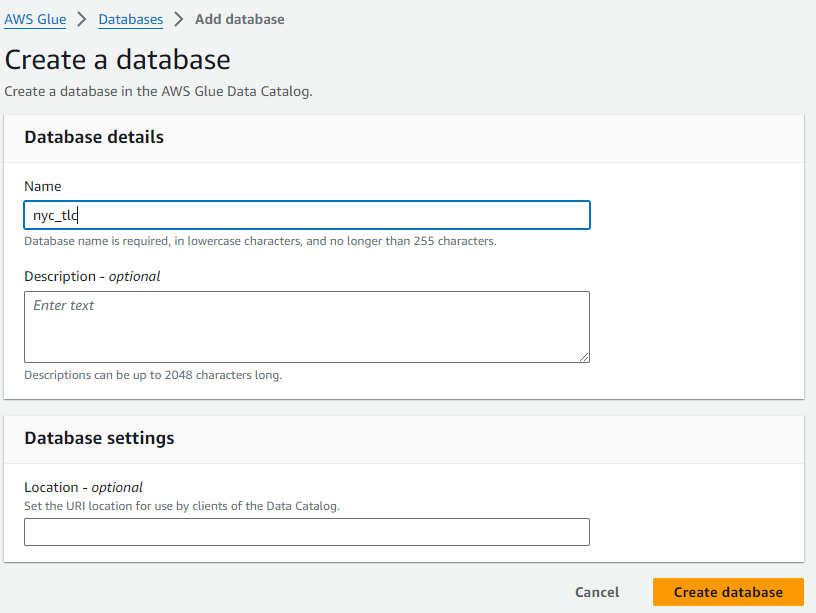
Go back to the AWS Glue tab and click on refresh. select the database as below. Click on next
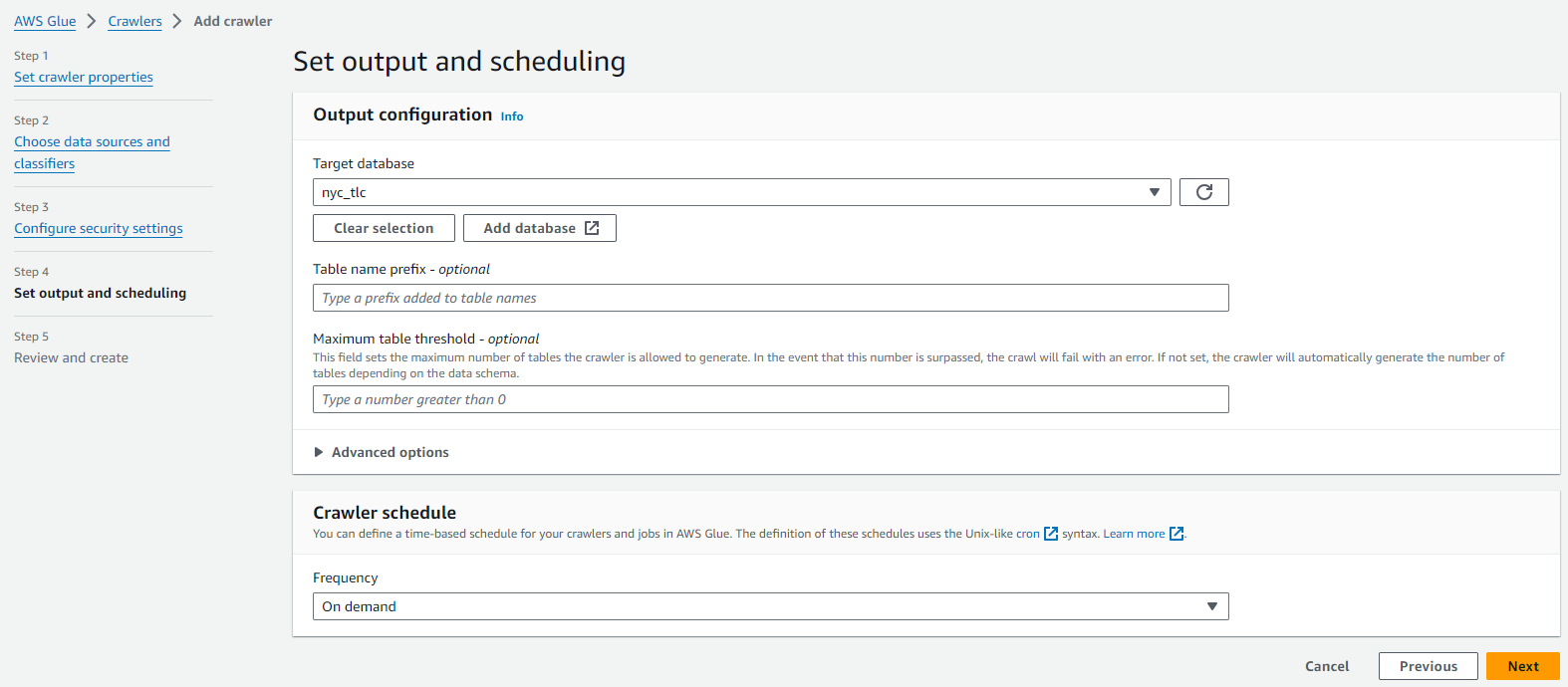
Now select Create Crawler
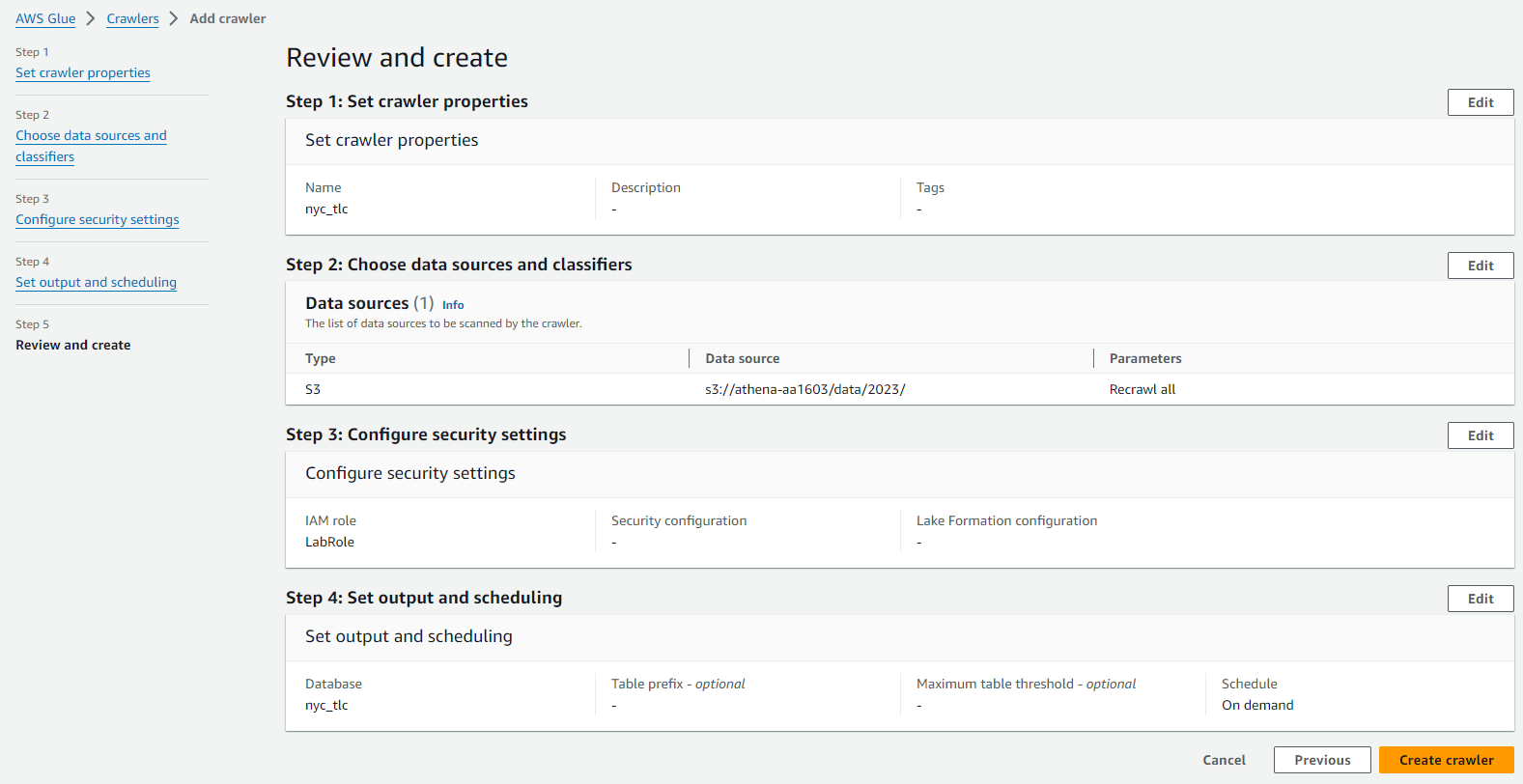
One Crawler should successfully be created. and you should see this:
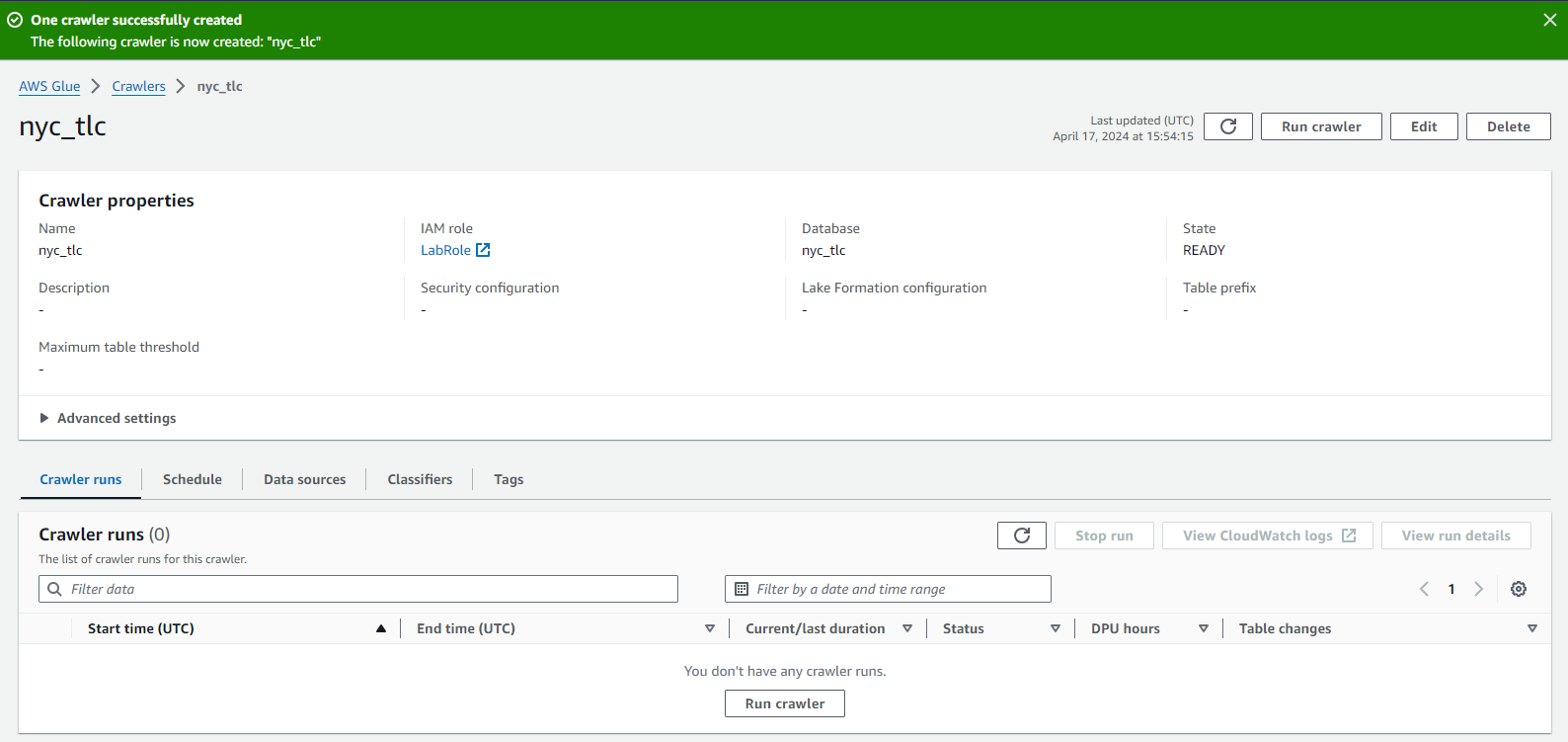
Now Click on Run Crawler. This screen should appear.
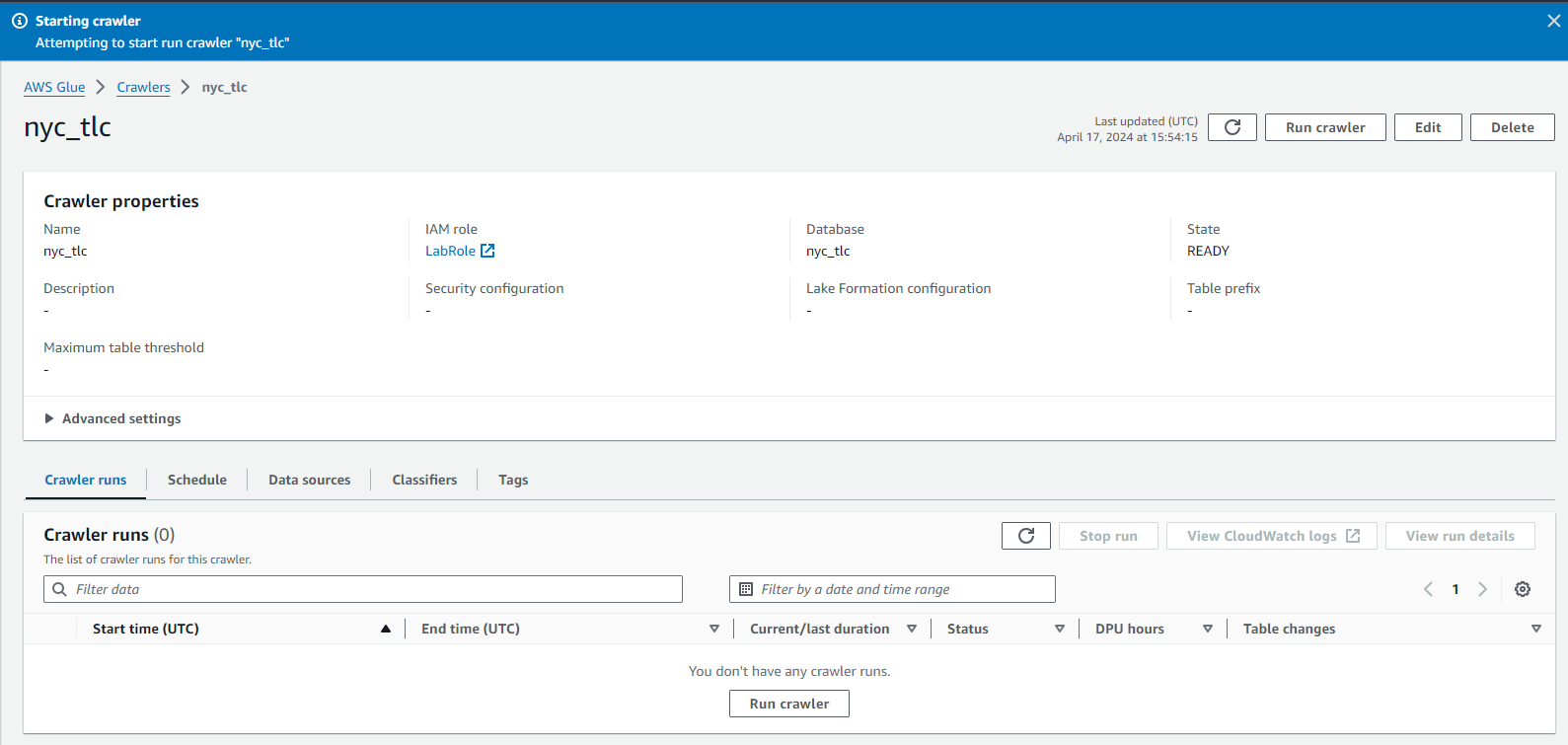
After some time, you should see
Crawler successfully starting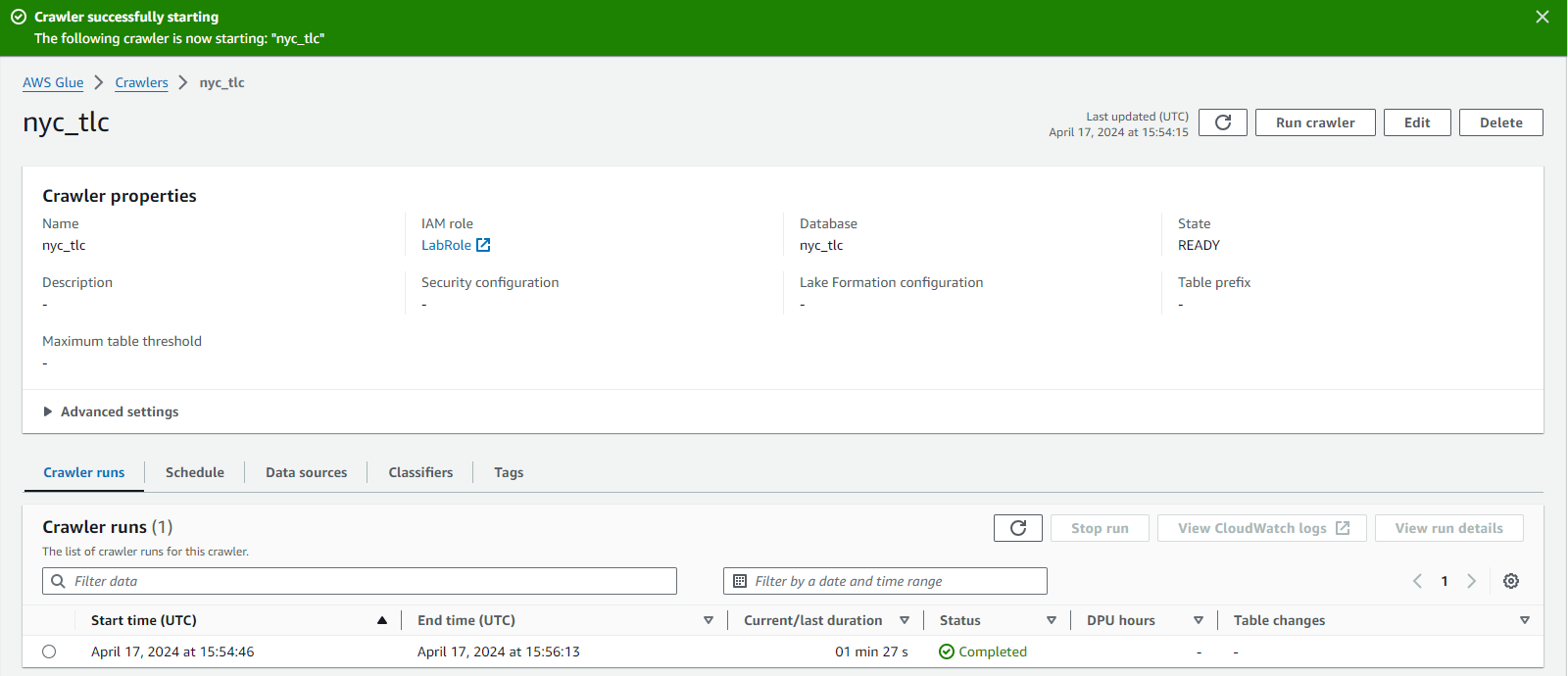
Step 2: Configuring and Using Amazon Athena
Now search for
Athena. Select Datasources and click onAWSDataCatalog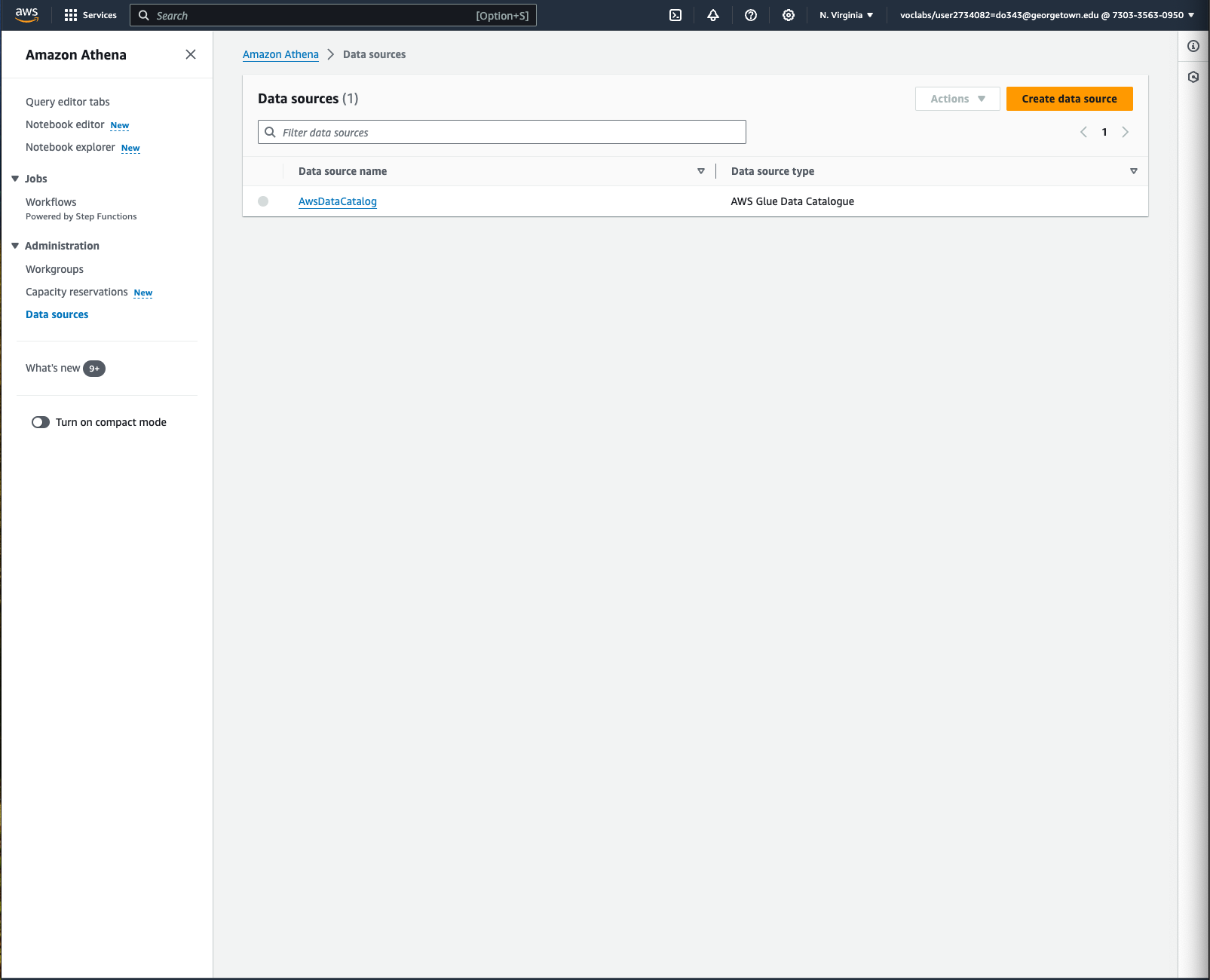
Now Click on
nyc_tlc.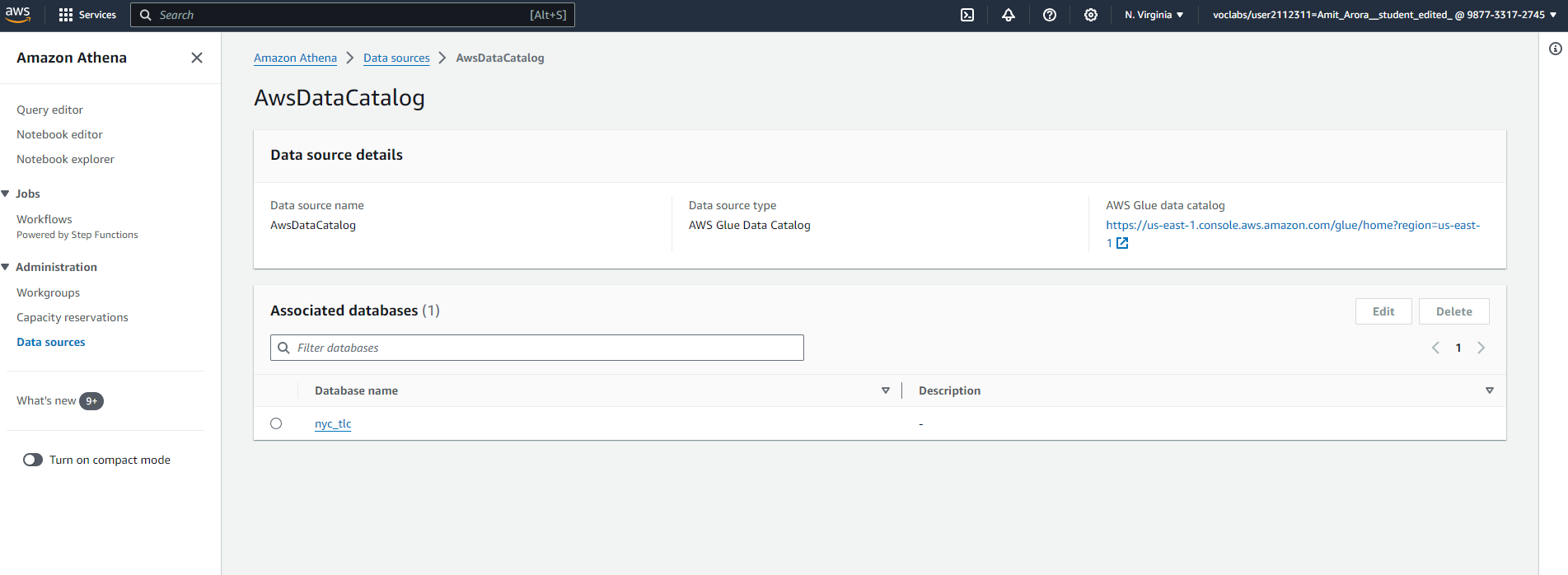
You will notice that a table is already created corresponding to our data source (the parquet files in the S3 bucket).
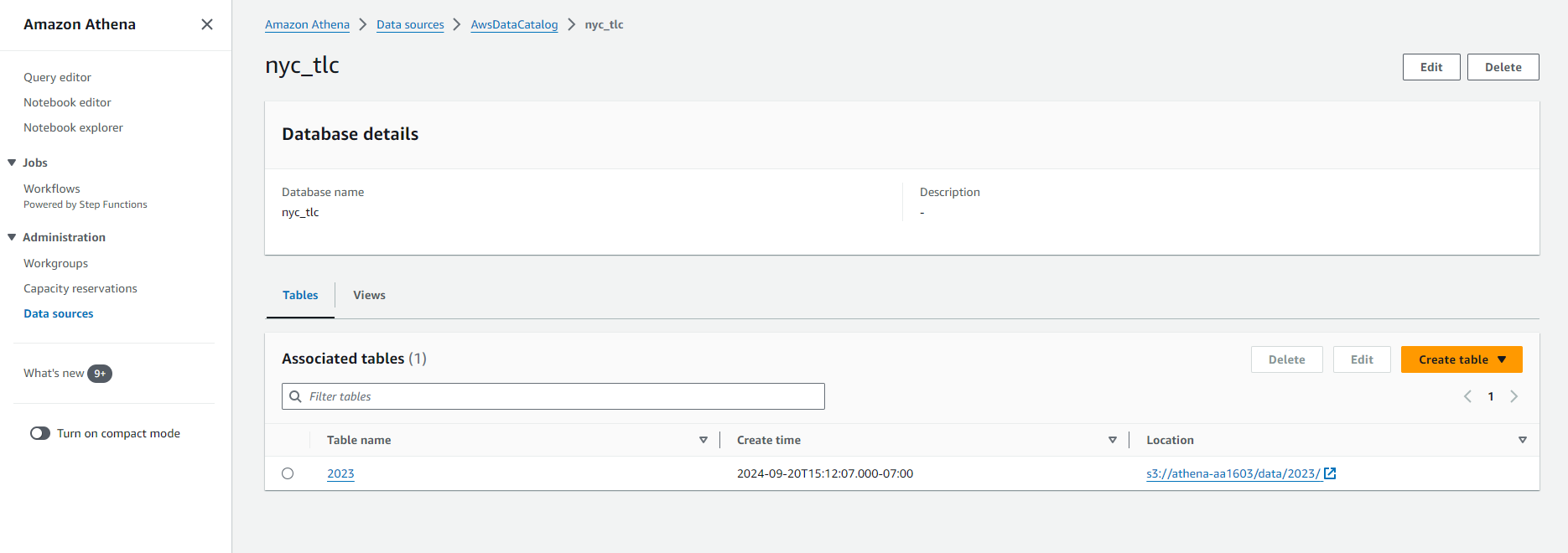
Click on the table name (i.e.
2023). You should see the schema of the table. This schema shows that the data crawler that we ran has read the parquet files in the S3 bucket,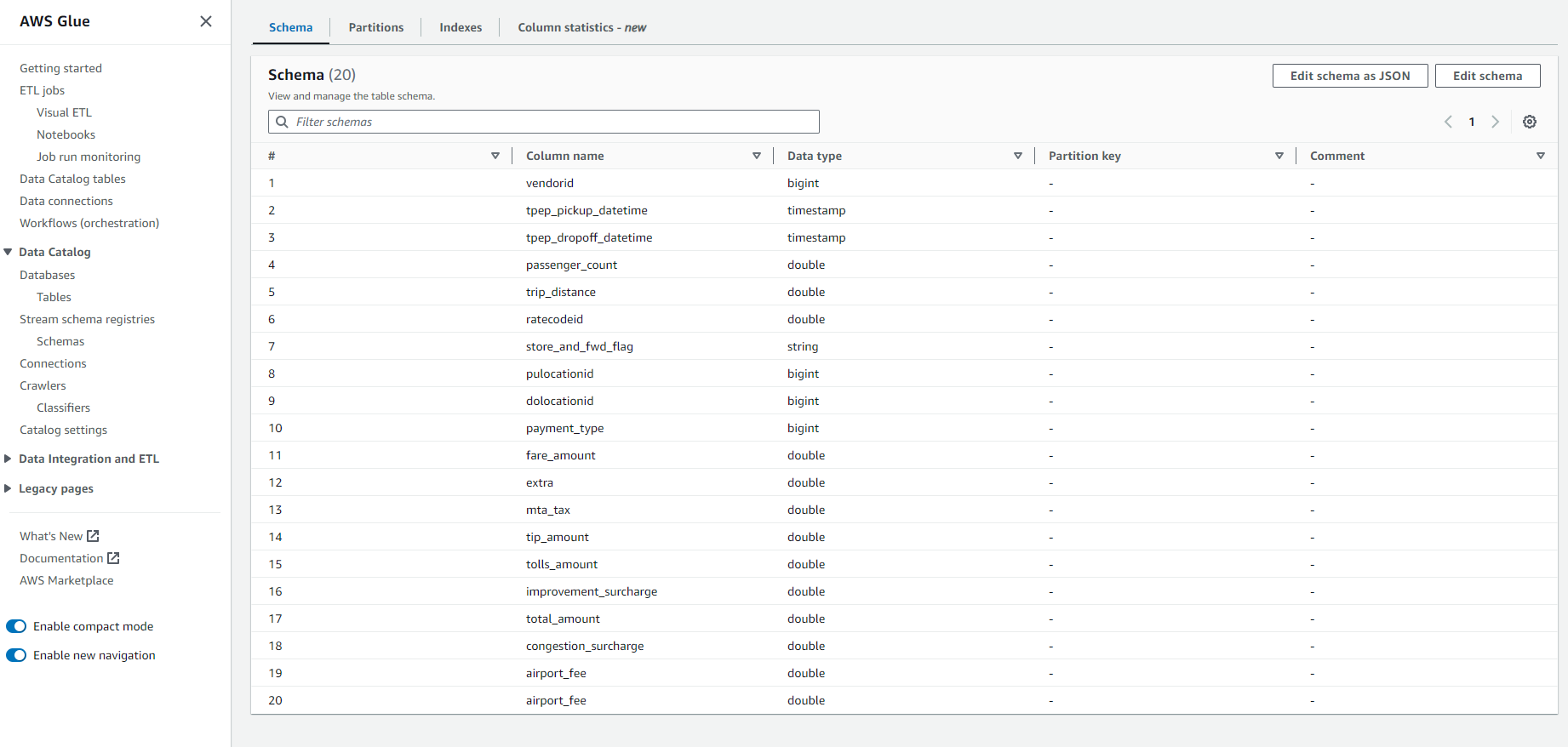
Observe the schema for a few seconds, do you notice something wrong? The
airport_feecolumn is repeated, so we need to fix this by editing the schema. Click onEdit schema.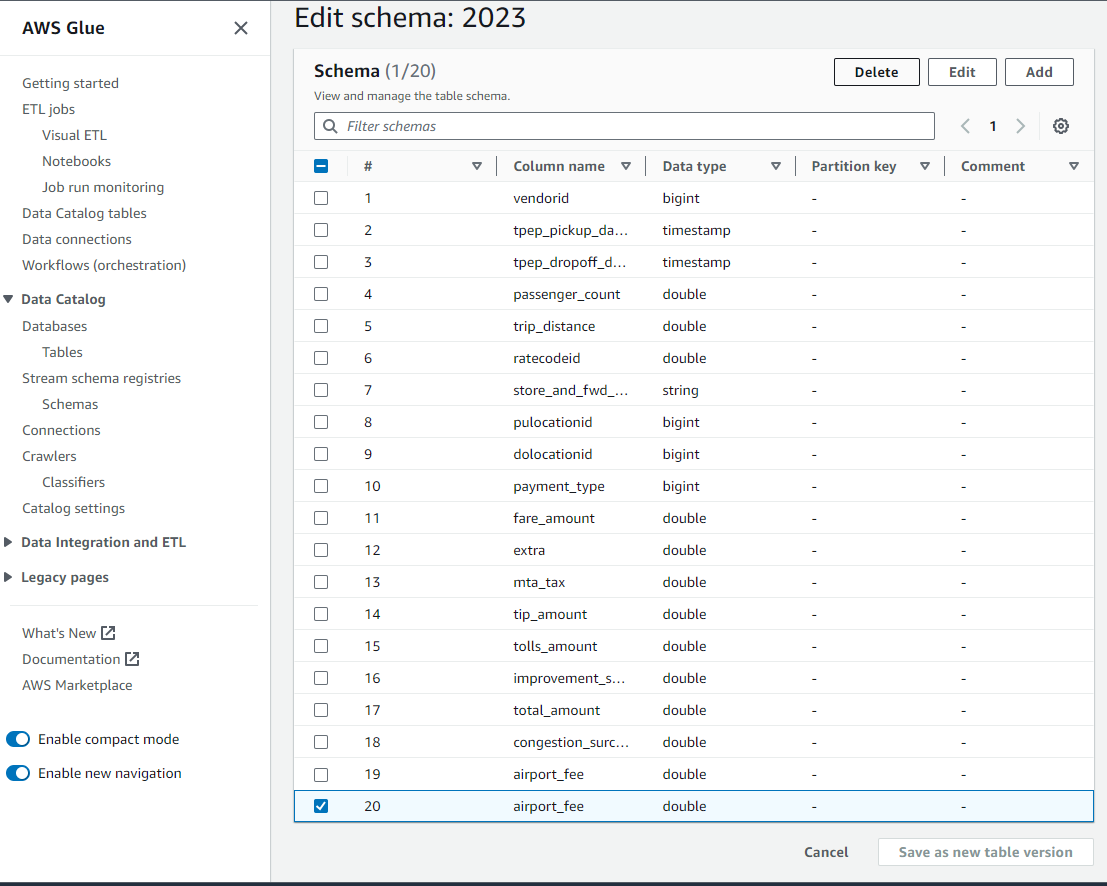
Delete the second occurence of the
airport_feefield and click onSave as new table version.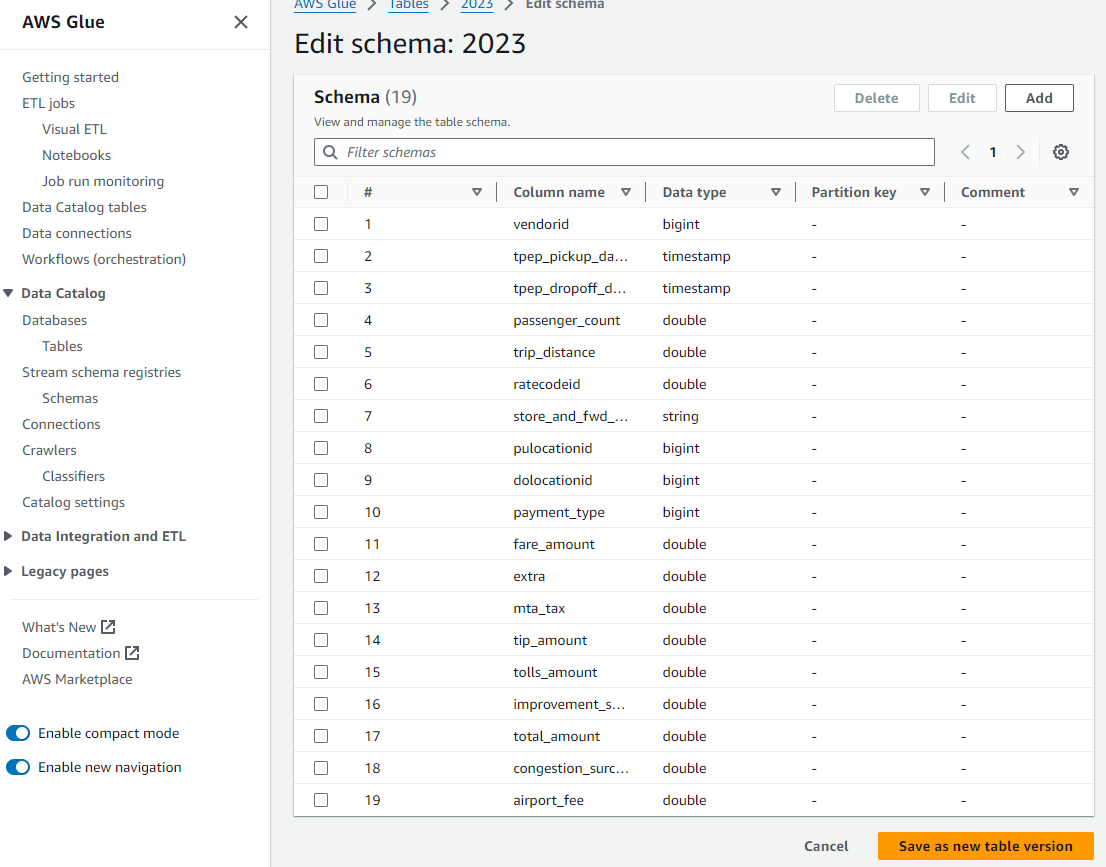
Now we are ready to query the data in this table. Search for
Athenain services and go toQuery Editor. However, there is still one last step remaining, Athena stores the results in S3 and we need to set the path in S3 where the results of the queries would be stored. Replace the net-id you see in the screenshot with your own net-id.We will need to make use of the
data/resultsfolder when we work with Athena programatically, so make a mental note of it.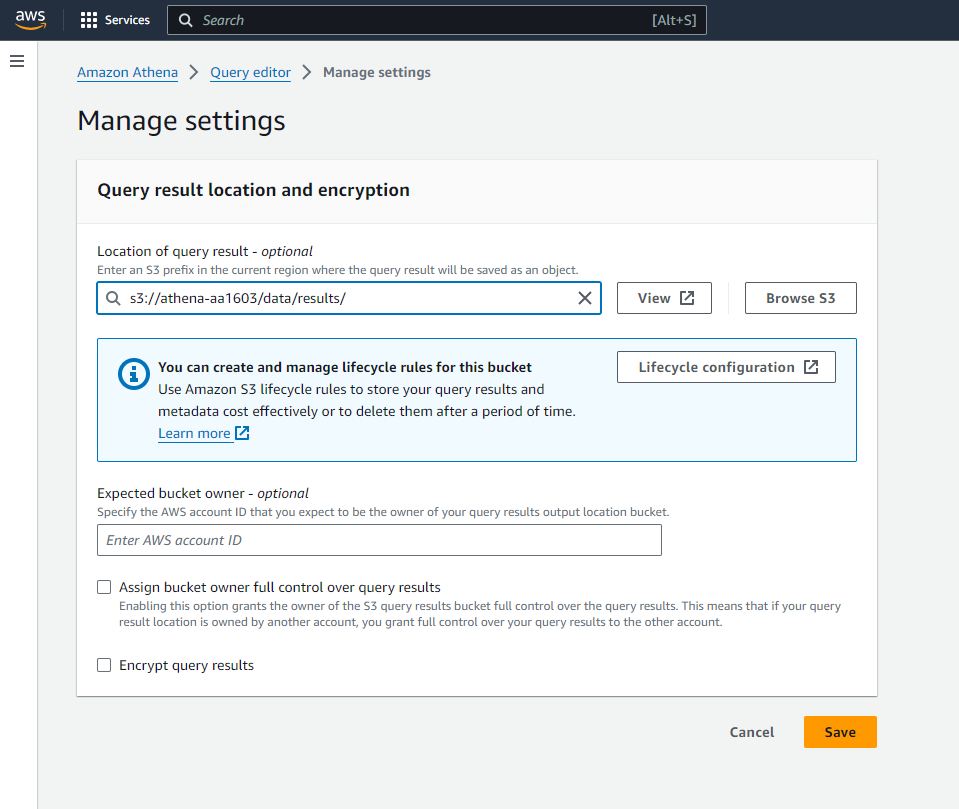
Type the following query in the Query Editor ->
SELECT count(*) from "AwsDataCatalog"."nyc_tlc"."2023". You should see the number of rows as shown in the following screenshot.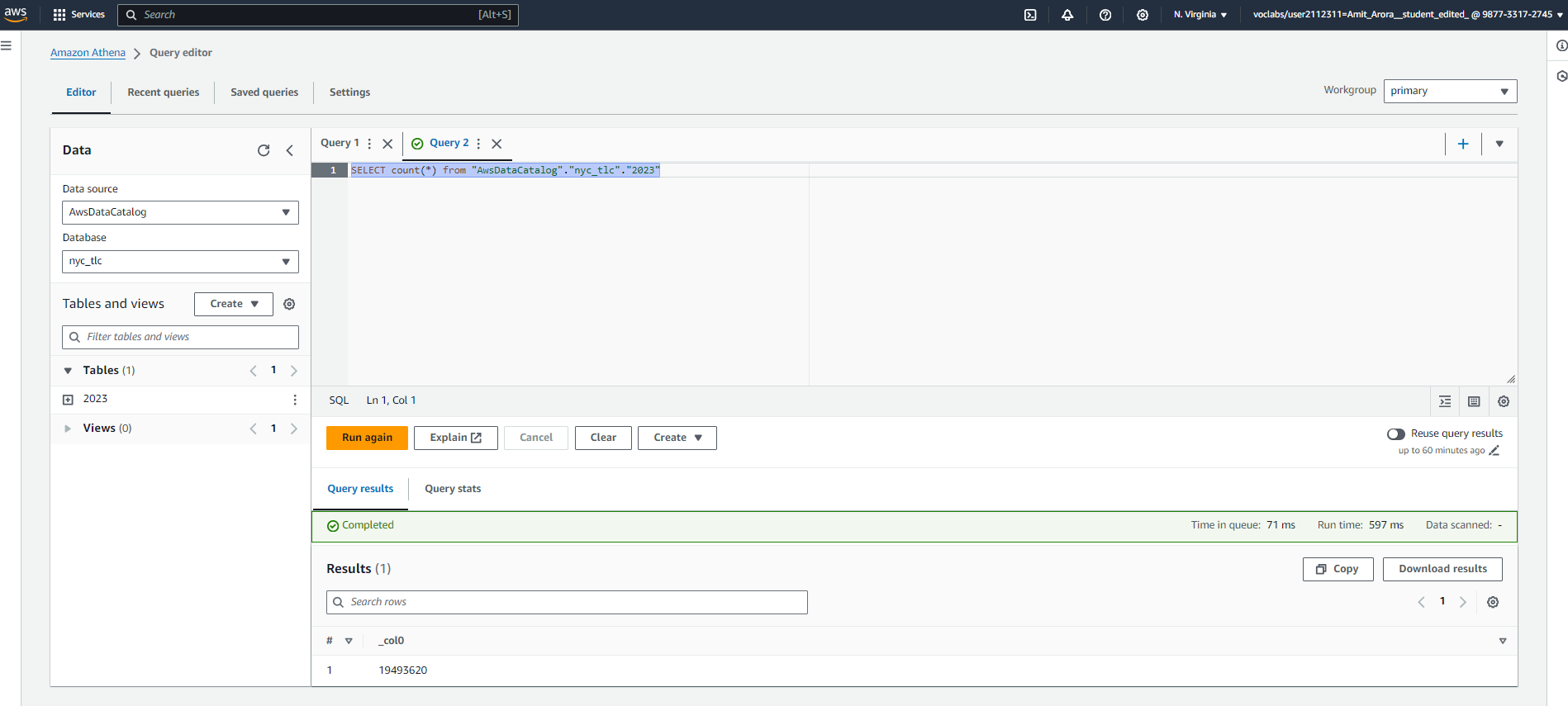
Step 3: SQL Queries
Once Amazon Athena is configured, execute the following queries in the Query Editor:
Query 1: Count Total Records
SELECT count(*) from "AwsDataCatalog"."nyc_tlc"."2023";Query 2: Find Trip Distance Anomalies
SELECT * FROM (
    SELECT
        t.pulocationid,
        t.dolocationid,
        t.tpep_pickup_datetime,
        t.tpep_dropoff_datetime,
        t.trip_distance,
        q1,
        q2,
        q3,
        (q3 - q1) AS iqr,
        CASE
            WHEN t.trip_distance < (q1 - 1.5 * (q3 - q1)) OR t.trip_distance > (q3 + 1.5 * (q3 - q1)) THEN 'Anomaly'
            ELSE 'Normal'
        END AS trip_distance_anomaly
    FROM
        (SELECT
            approx_percentile(trip_distance, 0.25) AS q1,
            approx_percentile(trip_distance, 0.5) AS q2,
            approx_percentile(trip_distance, 0.75) AS q3
        FROM "AwsDataCatalog"."nyc_tlc"."2023"
        WHERE trip_distance > 0 AND trip_distance < 100) AS quartiles,
        "AwsDataCatalog"."nyc_tlc"."2023" AS t
    WHERE t.trip_distance > 0
) AS anomaly_detection
WHERE trip_distance_anomaly = 'Anomaly'
LIMIT 1000;