Lab 1.2 Clarifications
Component-3
Creating a Quarto Website in VSCode
The beginning of the Component-3 description states that you should:
- Make sure the Quarto extension is installed in VS-Code.
- Using VS-Code –> New file –> “Quarto project” –> create a blank Quarto “Website” project in your 5000-lab-1.2 repo call simple_quarto_website
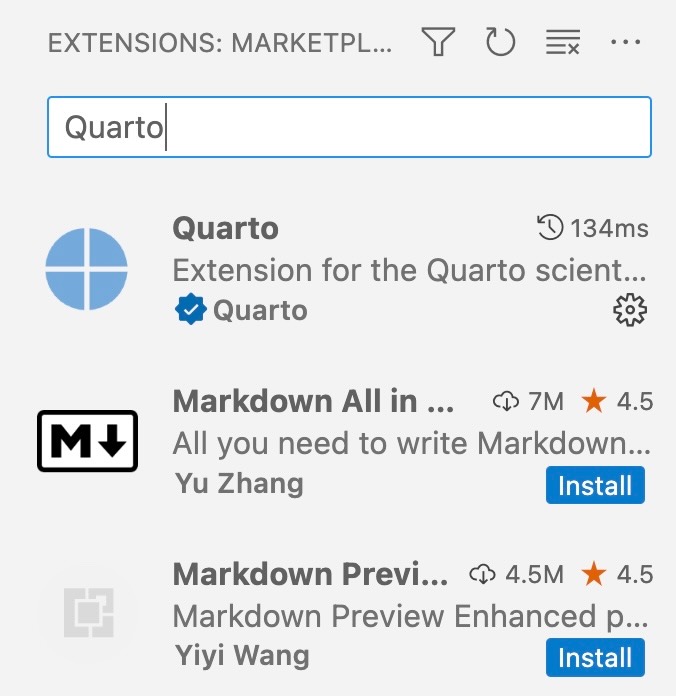
To clarify this portion: you can install the Quarto extension for VSCode by clicking on the “Extensions” panel on the left side of the VSCode interface (or pressing Cmd+Shift+X) and searching for “Quarto” in the extensions search box. The Quarto extension should be the first result:
Once you have this extension installed, there is a bit of a typo in the assignment description about how to create a Quarto project (specifically, a website project) within VSCode.
Rather than using VS-Code->New file->“Quarto project”, in the most recent version of the Quarto extension you should instead do the following:
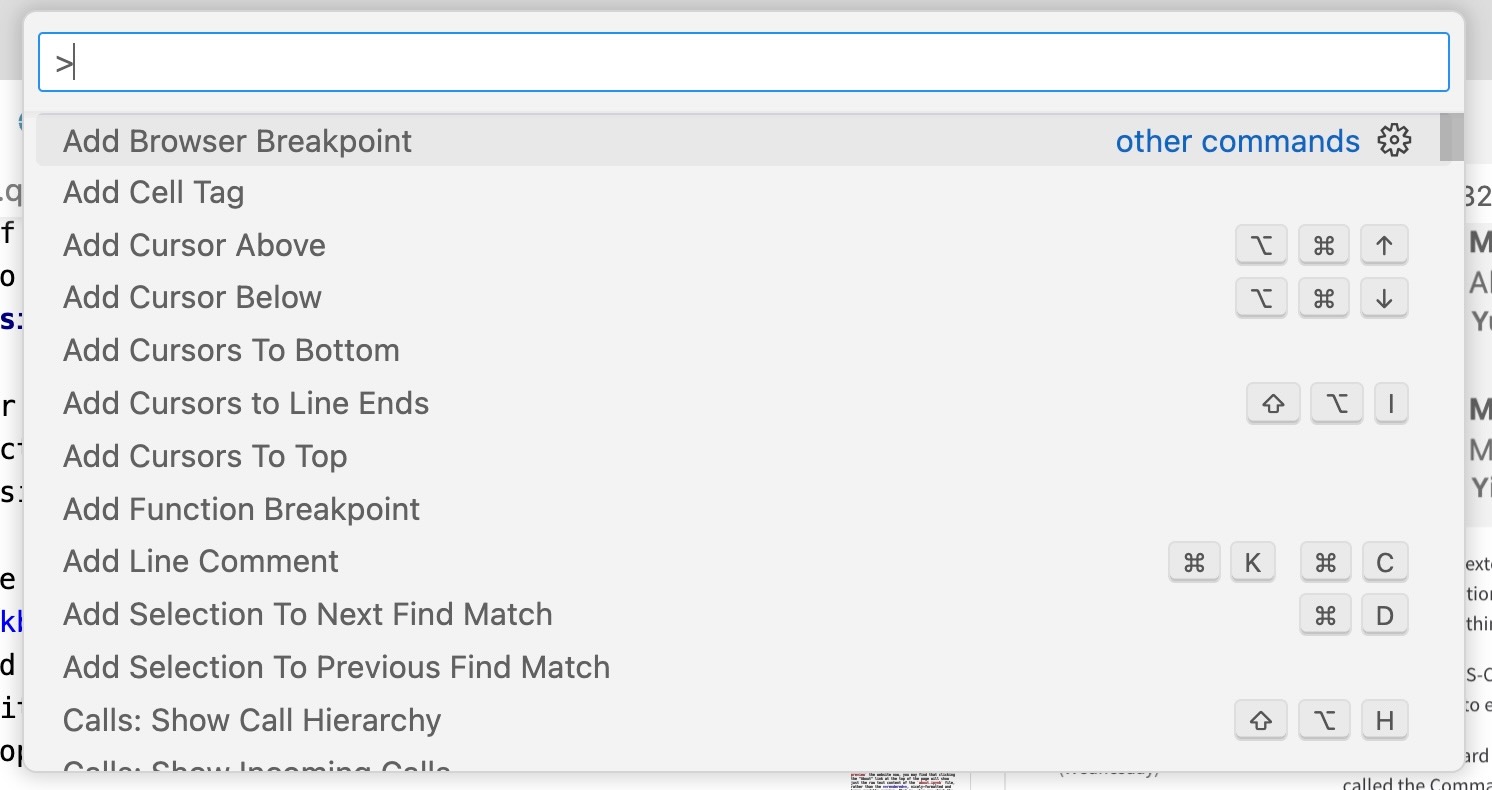
- Use the keyboard shortcut Shift-Cmd-P (Shift-Ctrl-P on Windows) to open what’s called the Command Palette in VSCode. It is a box with a text field in it that should pop up near the top of your screen:
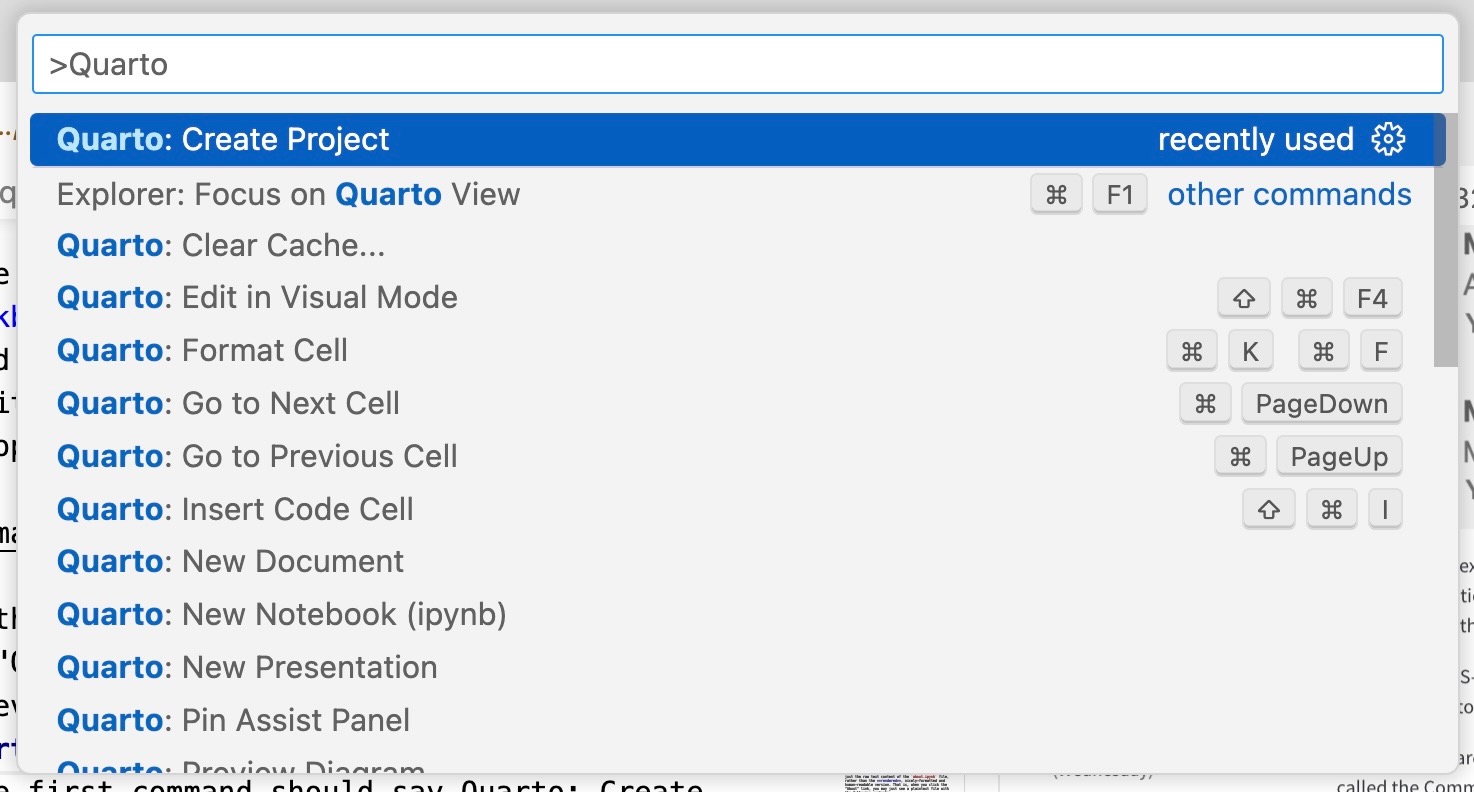
- Within this Command Palette, start typing the word “Quarto”. As you type, it should filter out the irrelevant commands and just show the Quarto-related commands.
- The first command in the list should now be Quarto: Create Project:
- Click this command, to begin the process of creating a Quarto project
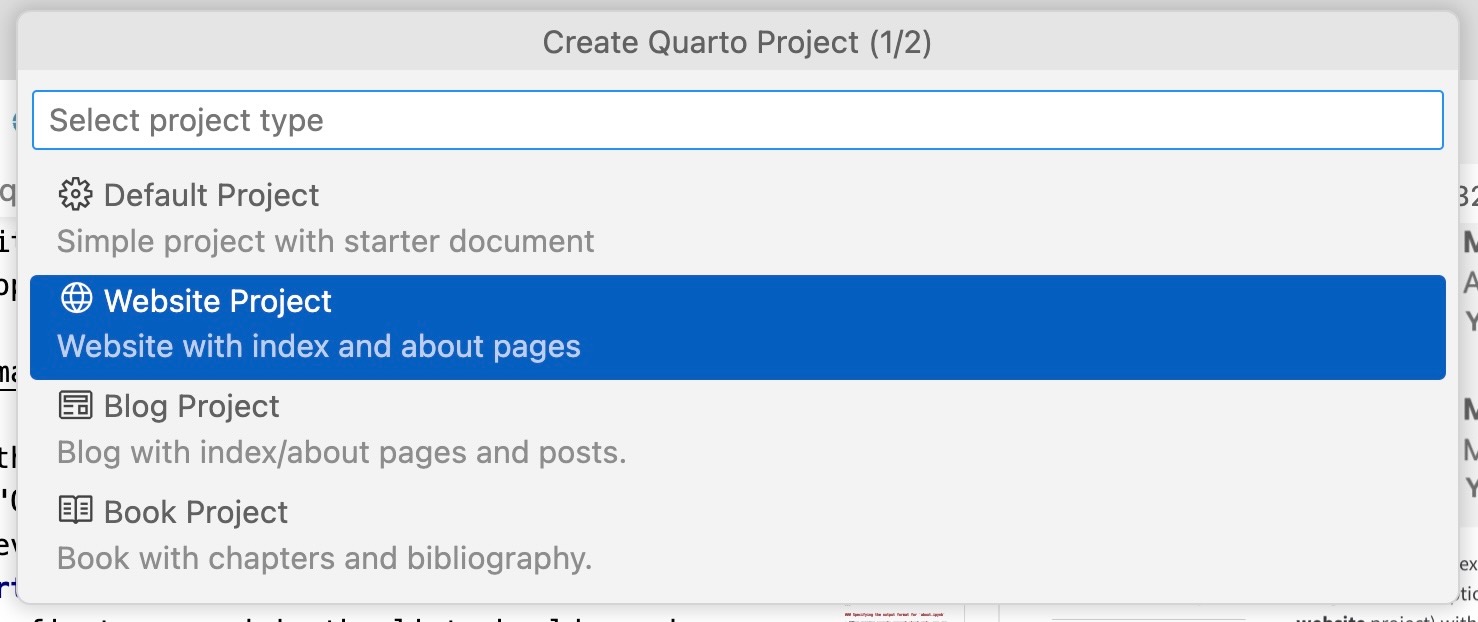
- Choose “Quarto Website” on the next screen:
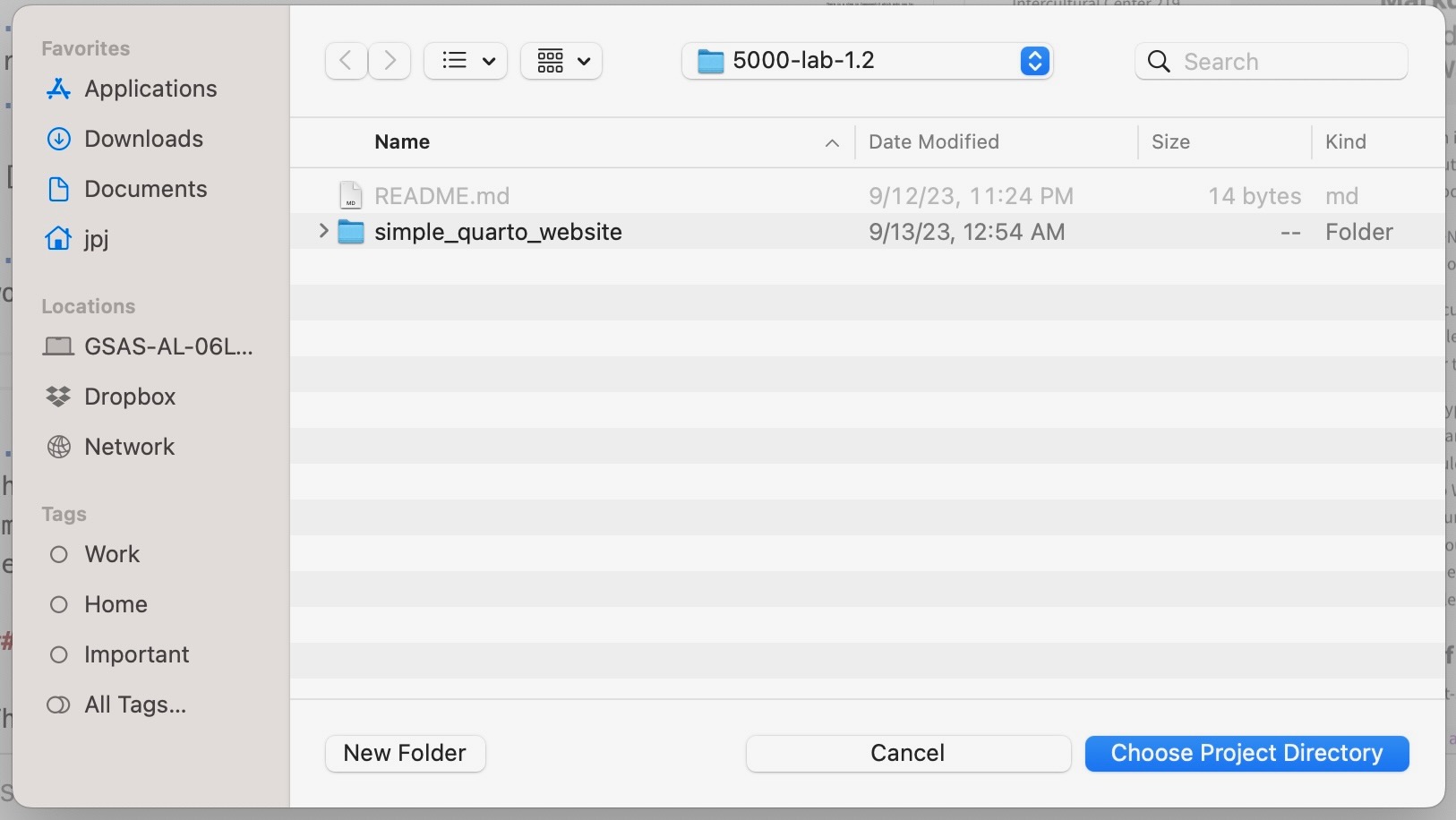
- Choose the folder on your computer where you would like Quarto to create the website (for the lab, for example, you could create a folder called
simple_quarto_website, and tell Quarto that you’d like to create the website within that folder):
- VSCode will now create the website and display the created files “_quarto.yml”, “index.qmd”, “about.qmd”, and “style.css” in the “Explorer” pane on the left side of the VSCode interface:
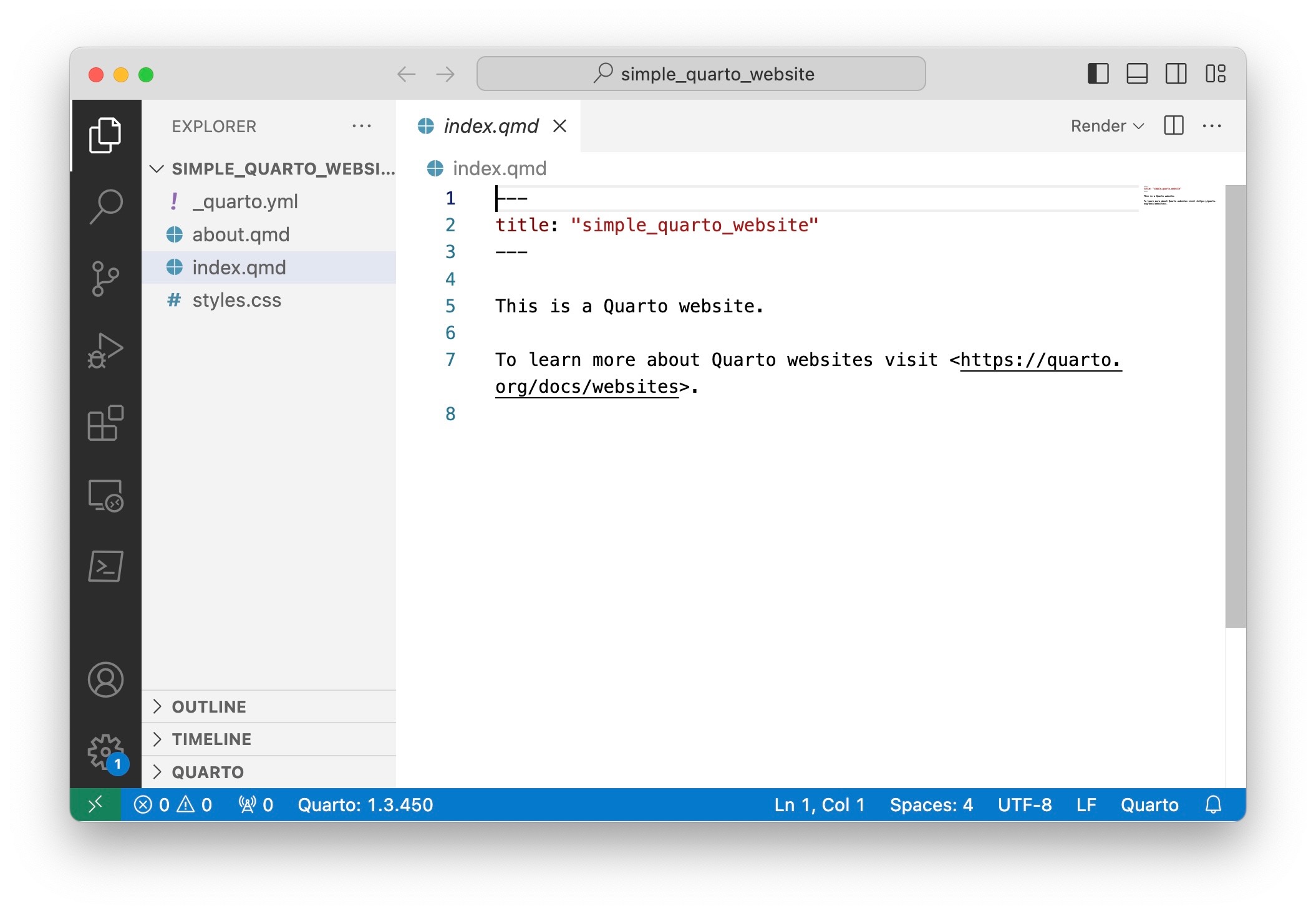
You should now be able to proceed with the lab, by modifying and adding files to this newly-created Quarto website project.
Multiple Versions of the About Page
There is a step in Component-3 which asks you to:
- Convert
about.qmdtoabout.ipynbwithquarto convert about.qmd.
After which (the last bullet in the section) it also asks you to
- modify
_quarto.ymlaccordingly- about.qmd->about.ipynb
Please note the following points about these two steps:
Making sure you have added both href and text data when updating _quarto.yml
- When you go to modify
_quarto.yml, you’ll notice that the Home link is specified using two pieces of information,hrefandtext:
      - href: index.qmd
text: Home- However, the About link is specified using a single bullet point, just indicating the name of the file:
- about.qmd- So, when you go to update
_quarto.ymlto changeabout.qmdtoabout.ipynb, make sure that you include both pieces of information given for the Home link, so that your new link information should now be:
      - href: index.qmd
        text: Home
      - href: about.ipynb
        text: About
Specifying the output format for about.ipynb
- After running
quarto convert about.qmd, you can open the generatedabout.ipynbfile to view the result. - However, you’ll see that the metadata block at the top of the file (the block which starts and ends with
---) only contains thetitleattribute. That is, the top of the file will look like the following:
---
title: "About"
---- But, for your website to correctly render this
.ipynbfile, you’ll need to also add information to this metadata block telling Quarto that you’d like it to output HTML code when it rendersabout.ipynbfor your website. - To achieve this, add an additional line within the metadata block (i.e., between the starting
---and the ending---), after thetitle: "About"line, specifyingformat: html. If you’ve done this correctly, your metadata block will now look like the following:
---
title: "About"
format: html
---- Once you have added this additional piece of metadata, and saved your changes to the
about.ipynbfile, you will be halfway to successfully rendering this file as a page within your website. For the second half, see the next point.
Removing the about.qmd file
- If you try to
quarto renderand/orquarto previewthe website now, you may find that clicking the “About” link at the top of the page will show just the raw text content of theabout.ipynbfile, rather than the rendered, nicely-formatted and human-readable version. That is, when you click the “About” link, you may just see a plaintext file with the following contents:
{
  "cells": [
    {
      "cell_type": "raw",
      "metadata": {},
      "source": [
        "---\n",
        "title: \"About\"\n",
        "format: html\n",
        "---"
      ]
    },
    {
      "cell_type": "markdown",
      "metadata": {},
      "source": [
        "About this site"
      ]
    }
  ],
  "metadata": {
    "kernelspec": {
      "display_name": "Python 3 (ipykernel)",
      "language": "python",
      "name": "python3"
    }
  },
  "nbformat": 4,
  "nbformat_minor": 4
}- If you encounter this issue, you can fix it by resolving the ambiguity that Quarto faces in having both
about.qmdandabout.ipynbfiles, and not knowing which one to choose as the file that should be rendered to create the finalabout.htmlfile, the file that will be placed in the_sitedirectory thatquarto rendercreates. - To resolve this ambiguity,
- First, if you’re paranoid about losing the information in
about.qmd, you can back this file up to another folder on your computer. - Then (or, you can start here if you’re not worried about losing
about.qmd), delete the originalabout.qmdfile.
- First, if you’re paranoid about losing the information in
- Deleting the original
about.qmdfile will thus ensure that Quarto has a singleaboutfile (in this case,about.ipynb) that it knows is the file you want Quarto to render and show when a user clicks the “About” link.
Component-4 and Component-5: Lorem Ipsum Text
In one of the bullets in both the Component-4 section and Component-5 section of the lab, it mentions the following:
- Note: Use of
ipsum loremplace-holder text is allowed
What this means is just: If you would like “filler text” for your index.qmd page, to show what it will look like once it’s filled with content (but without having to write hundreds of words of content yourself), you can use a “Lorem Ipsum text generator” to auto-generate some number of paragraphs (filled with random Latin words), and place this auto-generated text in your index.qmd file.
To see why you might want to do this, consider the difference between the following structure with no filler text:
My Heading
My Subheading
Another Subheading
Third Subheading
And the same structure but “filled out” with paragraphs of randomly-generated text:
My Heading
Lorem ipsum dolor sit amet, consectetur adipiscing elit, sed do eiusmod tempor incididunt ut labore et dolore magna aliqua. Sed cras ornare arcu dui vivamus arcu felis. Dis parturient montes nascetur ridiculus mus. Tincidunt ornare massa eget egestas purus viverra. Porttitor massa id neque aliquam vestibulum morbi. Fringilla phasellus faucibus scelerisque eleifend. Faucibus nisl tincidunt eget nullam non nisi est sit amet. Urna id volutpat lacus laoreet non. Sed pulvinar proin gravida hendrerit lectus a. Sed odio morbi quis commodo odio aenean sed adipiscing. Bibendum at varius vel pharetra vel turpis nunc. Nec dui nunc mattis enim ut tellus elementum sagittis. Nisl rhoncus mattis rhoncus urna neque viverra. Elit at imperdiet dui accumsan.
My Subheading
Porta non pulvinar neque laoreet suspendisse interdum consectetur libero id. Laoreet sit amet cursus sit amet dictum sit amet justo. Vitae semper quis lectus nulla at volutpat. Aliquet eget sit amet tellus cras adipiscing enim eu turpis. Tellus elementum sagittis vitae et leo duis ut. Neque vitae tempus quam pellentesque. Cursus eget nunc scelerisque viverra mauris. Morbi leo urna molestie at. Convallis posuere morbi leo urna molestie at elementum. Non consectetur a erat nam. Sagittis nisl rhoncus mattis rhoncus urna neque viverra. Lorem sed risus ultricies tristique.
Another Subheading
Turpis massa sed elementum tempus egestas. Et netus et malesuada fames ac turpis. Diam maecenas ultricies mi eget mauris pharetra et ultrices neque. Felis imperdiet proin fermentum leo vel orci porta non pulvinar. Vulputate dignissim suspendisse in est. Ultricies mi quis hendrerit dolor magna eget est. Senectus et netus et malesuada fames. Aliquet porttitor lacus luctus accumsan tortor posuere ac. Et ligula ullamcorper malesuada proin libero nunc consequat. Nibh mauris cursus mattis molestie a iaculis. Sit amet commodo nulla facilisi nullam. Mollis nunc sed id semper risus in hendrerit. Sit amet massa vitae tortor condimentum lacinia. Ante in nibh mauris cursus. Aliquam purus sit amet luctus. Tincidunt arcu non sodales neque.
Third Subheading
Lorem ipsum dolor sit amet consectetur adipiscing. Tortor pretium viverra suspendisse potenti. Felis eget nunc lobortis mattis aliquam faucibus. Morbi tincidunt ornare massa eget egestas purus viverra. Et netus et malesuada fames ac turpis. Nunc id cursus metus aliquam eleifend. Imperdiet massa tincidunt nunc pulvinar sapien et ligula ullamcorper malesuada. Dignissim diam quis enim lobortis scelerisque. Vel pretium lectus quam id leo in vitae turpis. Venenatis cras sed felis eget velit aliquet. Eu feugiat pretium nibh ipsum. Eu tincidunt tortor aliquam nulla facilisi.
If you think this second version looks nicer than the first, and shows more clearly how the headers separate out different pieces of content, you can use this “lorem ipsum” text as filler (until you replace it with your own original writing!).
Component-6
Linking to the Slideshow From Your Main Page
In Component-6, the assignment asks you to create a slideshow, with the first two steps being:
- Create a
slidessubfolder, withinsimple_quarto_website - Create a file within the
slidessubfolder calledslides.ipynb
And then it asks you to modify the yaml-format metadata block—this is the block of specially-formatted key-value pairs at the top of the first cell within the slides.ipynb file, that looks like the following (for example):
---
title: "My Slideshow"
---
To specify to Quarto that you’d like it to render this slides.ipynb file specifically as a Reveal.js slideshow, you’ll need to add the following additional key-value pair to this metadata block (which, again, should be at the top of the first cell within slides.ipynb):
format: revealjsMeaning that, if your original metadata block just had the title, like in the example above, now it will have two pieces of information for Quarto:
---
title: "My Slideshow"
format: revealjs
---
Once you’ve specified this format, though, it is still a bit tricky to preview the slideshow (to make sure that modifications you make are actually appearing in the slideshow, for example), since the Quarto extension for VSCode does not provide a nice “Render” button for .ipynb-format files like it does for .qmd-format files.
So, you can make your life slightly easier by adding a link to the slideshow from your website’s main navigation bar. To do that, you’ll need to modify your website’s _quarto.yml file, which contains the global settings for the website. If you open this file at this point in the project, it should look something like:
_quarto.yml
project:
  type: website

website:
  title: "simple_quarto_website"
  navbar:
    left:
      - href: index.qmd
        text: Home
      - about.ipynb

format:
  html:
    theme: cosmo
    toc: true
Notice the portion within the value of website (the indented portions under website:) with the key navbar, and within that value, the key left. Every bullet point underneath this left key will correspond to a link on the top navbar of your website, where the left key indicates that these links will be left-aligned (you could add a new key right:, and some links underneath that key, and those links would be right-aligned on the top navbar).
So, to add a link to the slideshow you are creating in slides/slides.ipynb, we’ll need to modify two things in this _quarto.yml file. First, since Quarto will sometimes complain and/or get confused if some links have href and text tags while others do not have this tag, let’s change the link that just contains about.ipynb to have an href and label, like:
- href: about.ipynb
  text: About
The YAML format requires that elements of a list (like the list of left-aligned links under the left key) line up in terms of indentation, so make sure that the full _quarto.yml file now looks something like:
_quarto.yml
project:
  type: website

website:
  title: "simple_quarto_website"
  navbar:
    left:
      - href: index.qmd
        text: Home
      - href: about.ipynb
        text: About

format:
  html:
    theme: cosmo
    toc: true
Now we should be able to add another, third link to this list, allowing us to go directly to the slideshow we’re making in slides/slides.ipynb. To do this, add a new element to the left list by adding another “bullet point” (another - character), then set the href value to be exactly that path (slides/slides.ipynb) and the text value to be “My Slides” (or, any title you’d like). Your _quarto.yml file should now look something like:
_quarto.yml
project:
  type: website

website:
  title: "simple_quarto_website"
  navbar:
    left:
      - href: index.qmd
        text: Home
      - href: about.ipynb
        text: About
      - href: slides/slides.ipynb
        text: Slides

format:
  html:
    theme: cosmo
    toc: true
and now when you preview your website by running the quarto preview command in the terminal (from within the root directory of your website, which should be named simple_quarto_website), you should see three links in the top navbar: one to “Home”, one to the “About” page, and a third to “Slides”.
Now, when you actually click the “Slides” link, it may not show anything, or it may show a bunch of non-human-readable raw code (which is actually the .json structure underlying a .ipynb file). This, however, is a separate issue, that you’ll need to tackle: how to get Quarto to know that it should show the Reveal.js presentation as the rendered form of the slides/slides.ipynb file. And that is part of the challenge of the assignment. As a hint, though, you should break it down into steps, to check exactly where this rendering is going wrong (if the slideshow doesn’t render as intended when you click the new “Slides” link):
- If you run the
quarto previewcommand from within theslidesfolder (rather than the root folder of your website,simple_quarto_website), does it display correctly as a slideshow? - Is the first cell in your
slides.ipynbfile in the correct format for containing file metadata? (File metadata can only be entered in “raw” or “markdown” cell types. If the first cell is, for example, a “Python” cell type, Quarto will be unable to read your metadata block, as it will think it’s Python code rather than YAML code). - Does the file metadata actually exist in a block at the top of the first cell? As mentioned above, the top of the first cell in your
.ipynbfile (which should be a “raw” or “markdown” type cell) should look something like
---
title: "Slides"
format: revealjs
---
If you don’t see text that looks like this at the top of the first cell in your slides.ipynb file, please add it and try to preview the file again (both from the root folder of your website and, for debugging purposes, also from the slides subfolder, as mentioned in step #1 above)